You have a PDF, and you need to change one line in it. Maybe it’s an old resume, a contract with the wrong date, or a 40-page report your boss wants updated by tomorrow. PDFs are great for sharing, but they’re stubborn when you try to edit them.
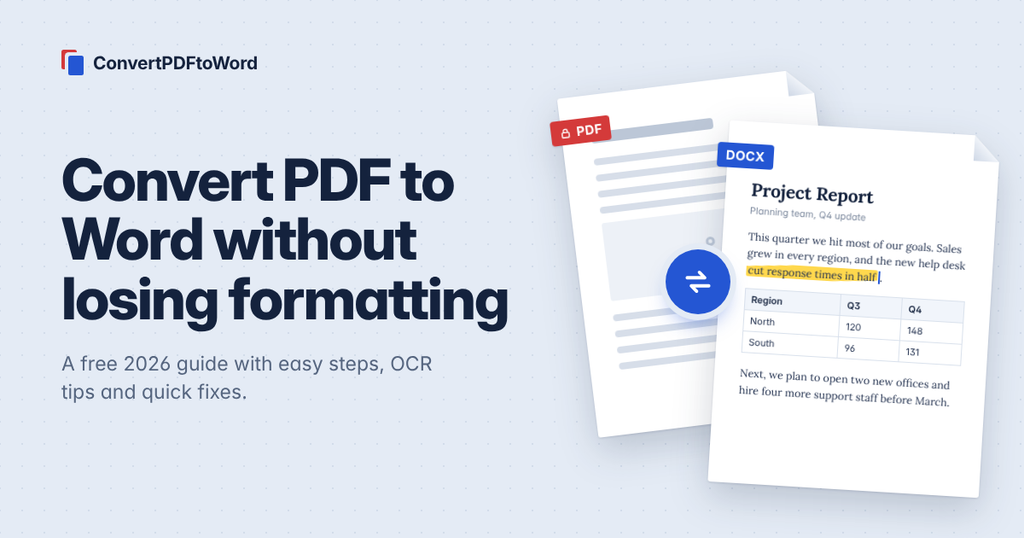
The quickest fix is to convert PDF to Word. Once the file is a .docx, you can edit the text, swap images and fix tables just like any normal document.
In this guide, we’ll show you how to do it in under a minute with ConvertPDFtoWord. We’ll also compare the other options (Microsoft Word, Google Docs and Adobe Acrobat), and tell you what to do when the formatting comes out messy or your PDF is just a scan.
Why convert PDF to Word?
Think of a PDF as a printed page saved on your computer. It looks the same on every screen, which is exactly why people send them. But that same “locked” quality makes it painful to edit. A Word file is the opposite: easy to change, easy to reuse.
Here are the most common reasons people convert:
- You need to update an old resume, but the original Word file is long gone.
- A contract, invoice or letter has a typo or the wrong date.
- You want to reuse text and tables from a report without retyping them.
- Someone sent you a form that isn’t fillable.
- Your teacher or supervisor returned your assignment as a PDF with comments.
- You need to translate or proofread a document.
If you’ve ever retyped a full page by hand because you couldn’t edit it, converting saves you that hour.
How to convert PDF to Word with ConvertPDFtoWord (3 steps)
This is the fastest way, and it works on Windows, Mac, Android and iPhone because everything happens in your browser. Nothing to install.
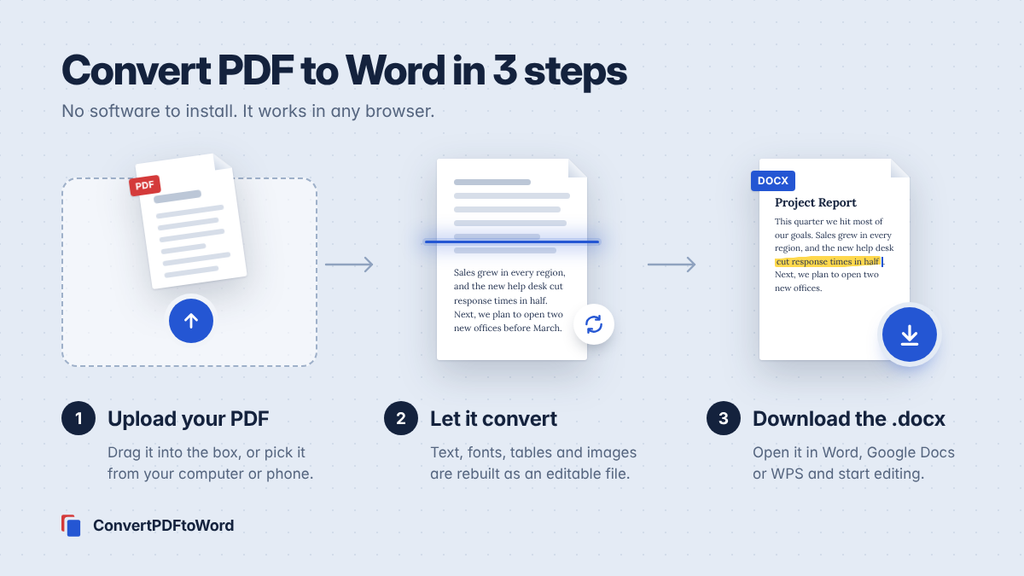
- Upload your PDF. Open the ConvertPDFtoWord converter and drag your file into the upload box, or click to pick it from your computer or phone.
- Let it convert. The tool reads the text, fonts, tables and images in your PDF and rebuilds them as an editable Word document. Most files are ready in a few seconds.
- Download your Word file. Click download and open the .docx in Microsoft Word, Google Docs, WPS Office or LibreOffice. Edit it like any other document.
That’s really all there is to it.
Small tip: keep the original PDF until you’ve checked the Word file. If a page looks off, you can always convert it again or compare the two side by side.
Other ways to convert PDF to Word (and how they compare)
An online converter isn’t your only choice. Here’s an honest look at the three other tools most people already have.
Microsoft Word
Word 2013 and newer can open a PDF directly. Go to File > Open, pick your PDF, and click OK when Word says it will convert the file. Word itself warns that the result may not look exactly like the original, especially if the PDF has a lot of graphics. It works well for simple, text-heavy files, and it works offline.
Google Docs
Upload the PDF to Google Drive, right-click it and choose Open with > Google Docs. Then use File > Download > Microsoft Word (.docx). It’s free, but Google’s own help page says to keep the file at 2 MB or smaller, and that lists, tables, columns and footnotes usually aren’t detected. Fine for plain text, not for a formatted report.
Quick comparison
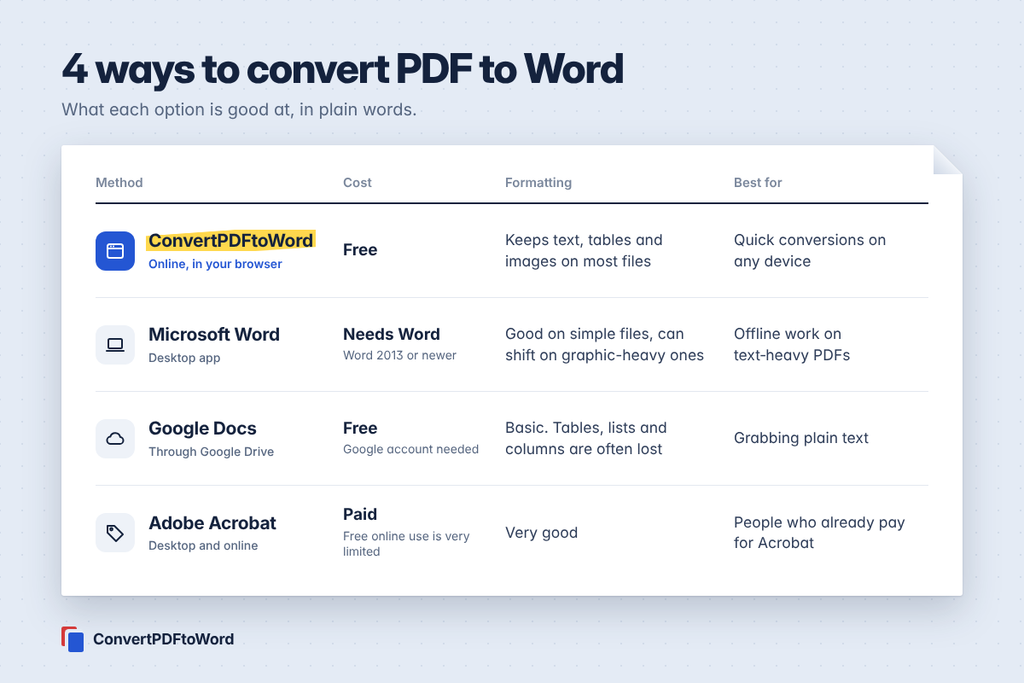
| Method | Cost | Formatting | Best for |
| ConvertPDFtoWord | Free | Keeps text, tables and images on most files | Quick everyday conversions on any device |
| Microsoft Word | Needs Word 2013 or newer | Good for simple files, can shift on graphic-heavy ones | Offline work on text-heavy PDFs |
| Google Docs | Free with a Google account | Basic; tables, lists and columns are often lost | Grabbing plain text |
| Adobe Acrobat | Paid (free online use is very limited) | Very good | People who already pay for Acrobat |
5 tips to convert PDF to Word without losing formatting
Most formatting problems come from the PDF itself, not the converter. These five habits fix the majority of them.
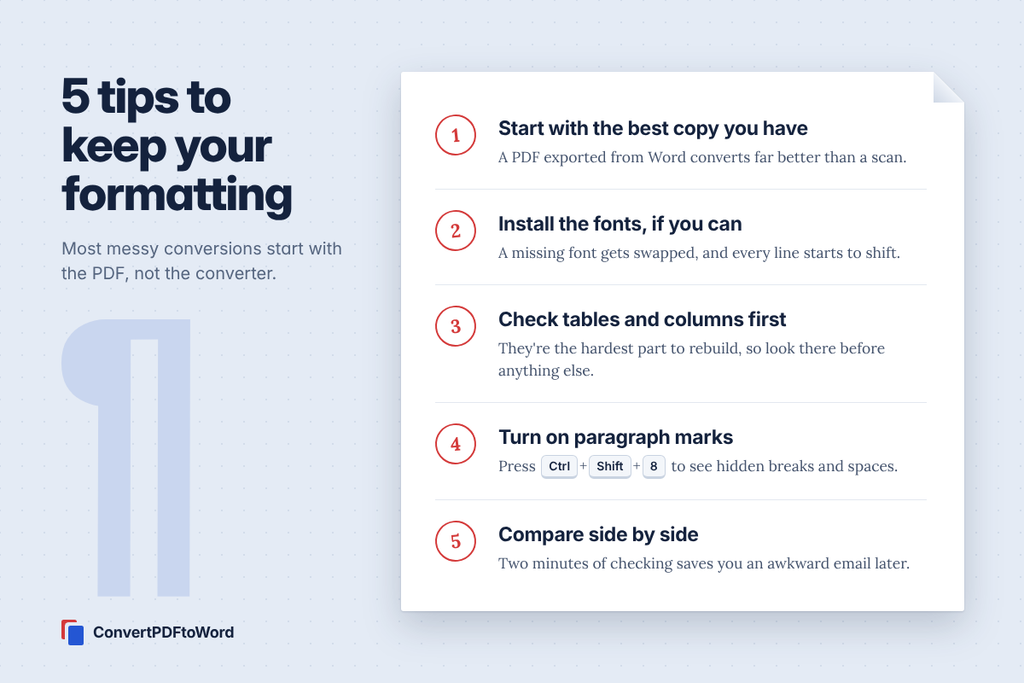
- Start with the best copy you have. A PDF exported from Word or Google Docs converts far better than a photo or a scan of a printout. If you can get the “real” PDF from the sender, ask for it.
- Install the fonts, if you can. When the PDF uses a font your computer doesn’t have, Word swaps in a different one. Lines get longer or shorter, and pages start to shift. Installing the same font fixes it.
- Check tables and columns first. Multi-column layouts and big tables are the hardest things to rebuild. Scroll through them before anything else, so you know how much cleanup you’re facing.
- Turn on paragraph marks. In Word, press Ctrl + Shift + 8 (or click the ¶ button). You’ll see hidden line breaks, spaces and text boxes, which makes odd spacing much easier to fix.
- Compare side by side before you send. Open the PDF and the Word file next to each other and skim page by page. Two minutes now saves an embarrassing email later.
What about scanned PDFs?
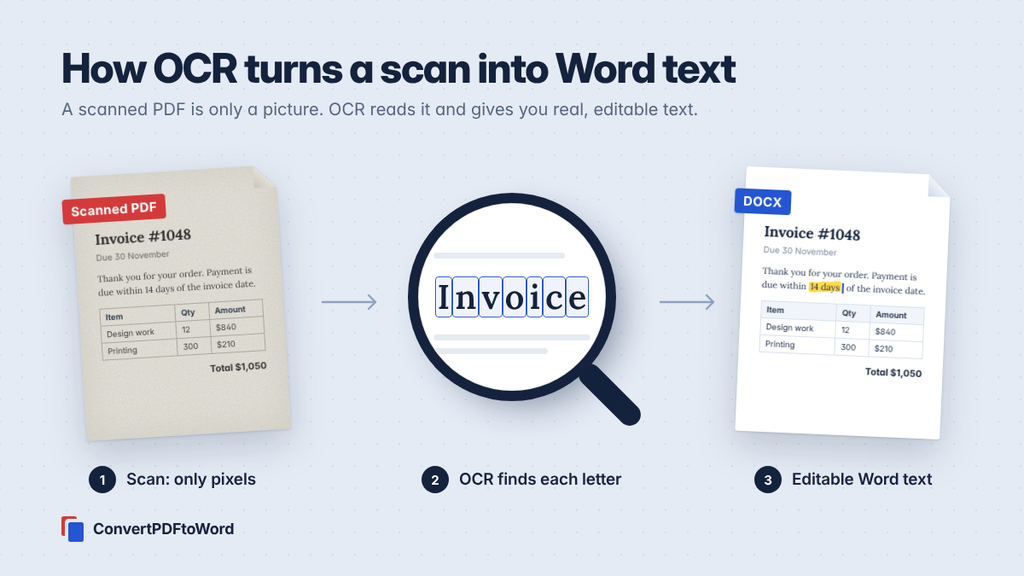
A scanned PDF is basically a photo of a page. There’s no real text inside it, only pixels shaped like letters. That’s why a normal conversion gives you a Word file with one big picture in it, and nothing you can edit.
To fix that, you need OCR (optical character recognition). OCR looks at the image, recognizes the letters, and turns them back into real, typeable text.
Here’s how to get the best OCR results:
- Scan at 300 DPI or higher. Blurry scans give blurry results.
- Keep pages straight. Rotate sideways pages before you convert.
- Use good light and contrast. Dark text on a clean white page works best. Avoid shadows if you’re using your phone camera.
- Proofread names and numbers. OCR is very good, but it can still mix up 0 and O, or 1 and l. Always double-check amounts, dates and phone numbers.
Handwriting is still hit and miss with most tools, so expect to correct it by hand.
Is it safe to convert PDF to Word online?
For everyday files like resumes, notes, assignments and reports, yes, as long as you use a trustworthy site. Here’s what to look for before you upload anything:
- HTTPS in the address bar. That padlock means your file is encrypted on the way to the server.
- A clear file deletion policy. A good converter tells you how long it keeps your files, and deletes them automatically.
- No strange downloads. You should get a .docx file, not an .exe or a “downloader” app.
For very sensitive documents, such as bank statements, ID cards or legal papers, think twice about uploading them anywhere. Converting them offline in Microsoft Word is the safer route.
Common problems after converting (and quick fixes)
| Problem | Why it happens | Quick fix |
| Lines break in the middle of sentences | The PDF stored every line as its own paragraph | Use Find and Replace (Ctrl + H): replace ^p^p with ###, then ^p with a space, then ### with ^p |
| Fonts look different | The original font isn’t installed on your computer | Install the font, or select all (Ctrl + A) and pick one font for the whole document |
| Tables are split or misaligned | Complex tables with merged cells are hard to rebuild | Click inside the table and use Layout > AutoFit, or rebuild only that table |
| The Word file is just one big image | The PDF is a scan with no real text | Convert again with OCR (see the scanned PDF section above) |
| “This file is protected” error | The PDF has a password or editing lock | Open it with the password and remove the lock first (only for files you’re allowed to edit) |
| Images look blurry | The images in the PDF were low quality to begin with | Replace them with the original image files if you have them |
That first fix sounds technical, but it takes ten seconds. The ### trick protects your real paragraph breaks while the single line breaks are cleaned up.
Frequently asked questions
Can I convert PDF to Word for free?
Yes. ConvertPDFtoWord is free to use in your browser. Google Docs can also do it for free, and so can Microsoft Word if you already have it, but both lose more formatting.
Will my formatting stay the same?
For most text-based PDFs, yes. Headings, fonts, tables and images usually come through well. Very designed layouts, like brochures or magazines, may need a few small fixes.
Can I convert a scanned PDF to Word?
Yes, but you need OCR. Without it, you’ll only get a picture of the page inside your Word file, not text you can edit.
Can I convert PDF to Word on my phone?
Yes. Open ConvertPDFtoWord in your phone’s browser, upload the PDF from your files, and download the Word document. It works on both Android and iPhone.
What’s the difference between DOC and DOCX?
DOCX is the newer Word format, used since Word 2007. Files are smaller and work with almost every app. DOC is the old format. Choose DOCX unless you need to open the file in a very old version of Word.
How do I turn the Word file back into a PDF?
In Word, go to File > Save As and choose PDF as the file type. In Google Docs, use File > Download > PDF document.
Final thoughts
Converting a PDF to Word shouldn’t eat up your afternoon. For most files, it’s upload, wait a few seconds, download, done. Give the result a quick check, clean up any odd line breaks, and you’re ready to edit.
Got a PDF waiting right now? Convert it to Word with ConvertPDFtoWord and see how it comes out. It’s free and takes less time than reading this paragraph.
Sources
- Convert PDF and photo files to text, Google Drive Help
- Try Adobe Acrobat online services FAQ, Adobe
- Convert PDF to Word using Microsoft Word, KCKCC IT knowledge base
- FAQPage structured data changelog, Google Search Central
